Getting started with Audible does not require technical experience. If you can use a phone to make calls, send messages, or browse the internet, you can set up Audible. This guide walks through the process slowly and clearly, so you can follow along without feeling rushed.
You can use Audible on both phones and tablets, including iPhones, iPads, Android phones, and Android tablets. The steps are very similar across all devices.
What you need before you start.
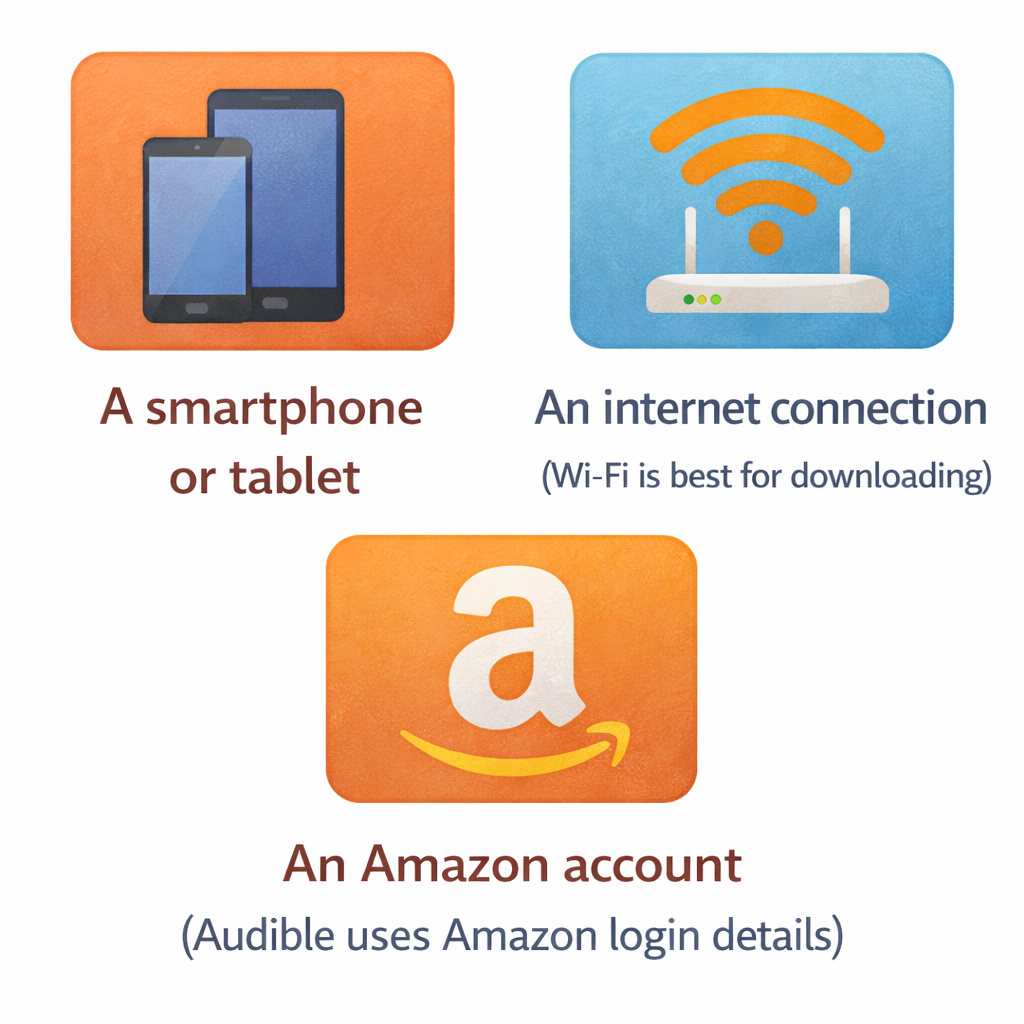
Before setting up Audible, make sure you have the following:
- A smartphone or tablet
- An internet connection (Wi-Fi is best for downloading)
- An Amazon account (Audible uses Amazon login details)
If you already shop on Amazon or have used Kindle before, you already have what you need.
🤚Before we begin, here’s a quick look at what Audible does and what you’ll need.

- Browse a library of over 425,000 audiobooks and podcasts
- Get a free audiobook with a 30-day free trial
- Download audiobooks to your device and listen on the go
- Switch between reading and listening with Whispersync for Voice (compatible Kindle device…
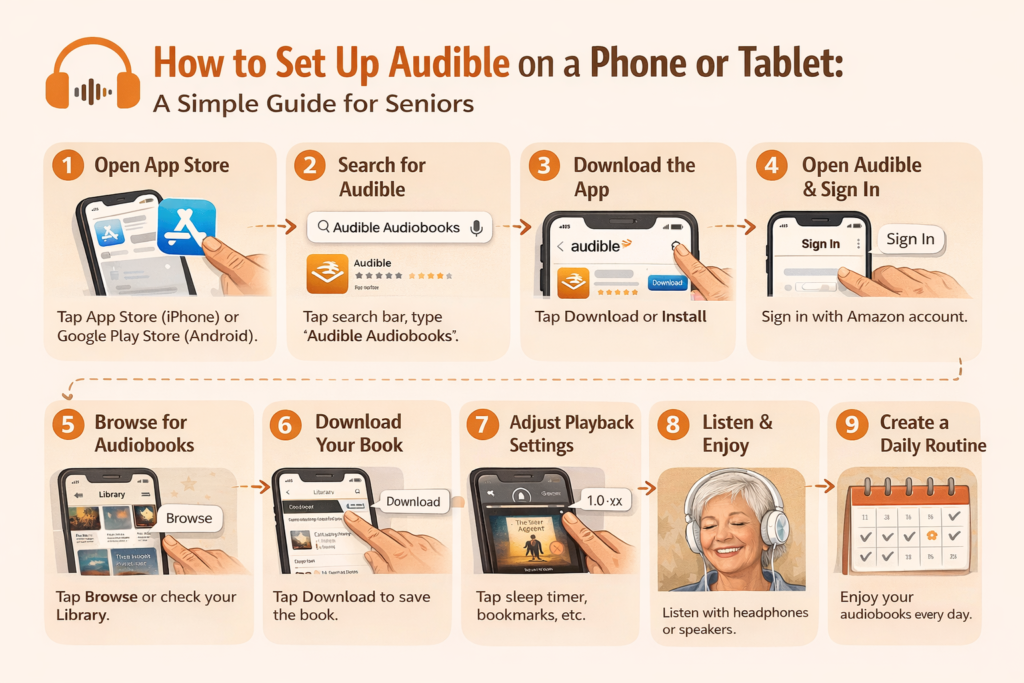
Step 1: Open the App Store on Your Device
On your phone or tablet, look for the app store:
- iPhone or iPad: App Store
- Android phone or tablet: Google Play Store
Tap the app store icon to open it.
Step 2: Search for the Audible App
In the search bar at the top of the app store, type:
Audible Audiobooks
Look for the app created by Audible, Inc. with the orange icon and white soundwave logo. This helps ensure you download the correct app.
Step 3: Download and Install the App
Tap Download or Install.
The app will install automatically. This may take a minute or two, depending on your internet connection. Once installed, you will see the Audible icon on your screen.
Step 4: Open Audible and Sign In
Tap the Audible app to open it.
You will be asked to sign in using your Amazon account email and password. Audible uses Amazon accounts, so there is no separate login to remember.
If you don’t remember your password, you can tap Forgot Password and follow the instructions.
Step 5: Allow Helpful Permissions
Audible may ask permission to:
- Send notifications
- Download files
- Access storage
Allowing these permissions helps Audible work properly. Notifications are optional, but storage access is needed to download audiobooks for offline listening.
Step 6: Explore the Home Screen
Once logged in, you will see the Audible home screen. This is where you can:
- Browse audiobooks
- View recommendations
- Access your library
- Search for specific titles
Take a moment to get comfortable with the layout. You don’t need to press anything yet.
Step 7: Download Your First Audiobook
If you already own an audiobook (from a free trial or previous purchase):
- Tap Library
- Select your book
- Tap Download
Once downloaded, the book will stay on your device and can be listened to without internet access.
Step 8: Adjust Playback Settings for Comfort
Audible includes helpful listening options designed for comfort:
- Playback speed: Slow down or speed up narration
- Sleep timer: Automatically stop playback after a set time
- Bookmarks: Save important parts to return to later
These controls are found on the playback screen and can make listening much more enjoyable.
Step 9: Use Headphones or Speakers (Optional)
You can listen using:
- Wired headphones
- Wireless Bluetooth headphones
- Phone or tablet speakers
- Smart speakers (with setup)
Headphones often provide clearer sound, especially if you prefer lower volume.
Common Setup Questions Seniors Ask
Is Audible free to use?
Audible requires a membership, but many people start with a free trial to see if they enjoy audiobooks before continuing.
Can I make the text bigger?
Yes. Audible allows you to increase text size in settings for easier reading.
What if I make a mistake?
Nothing is permanent. You can pause, stop, or change settings at any time without breaking anything.
Final Thoughts: Take Your Time
Setting up Audible does not need to be done all at once. You can install the app one day and explore it another day. There is no pressure and no deadline.
Once set up, Audible becomes very easy to use—and many seniors find it becomes part of their daily routine for relaxation, learning, and enjoyment.
In the next article, we’ll look at how to choose audiobooks that seniors enjoy most, including popular genres, narrator tips, and how to sample books before purchasing.
Have you seen our Audible Basics for Seniors/Beginners yet? If not, view “The Complete Guide to Audio Books” and Audible”!